One of the things I dislike about reading on my iPad is that there are so many distractions that can break your concentration, like iMessages, Facebook Messenger, Twitter notifications, etc. Now sure…you can swipe down and just tap the crescent moon and turn on Do Not Disturb.
But I forget to do that. Every time. Why can’t it just turn on DND automatically when it knows I’m reading??
Well…it can. And, it’s REALLY EASY. Here’s a step-by-step showing you how to do this using the Shortcuts app. I’ve written these instructions for beginners so if you know what you’re doing, you’ll fly through this quickly, I apologize for the very specific instructions.
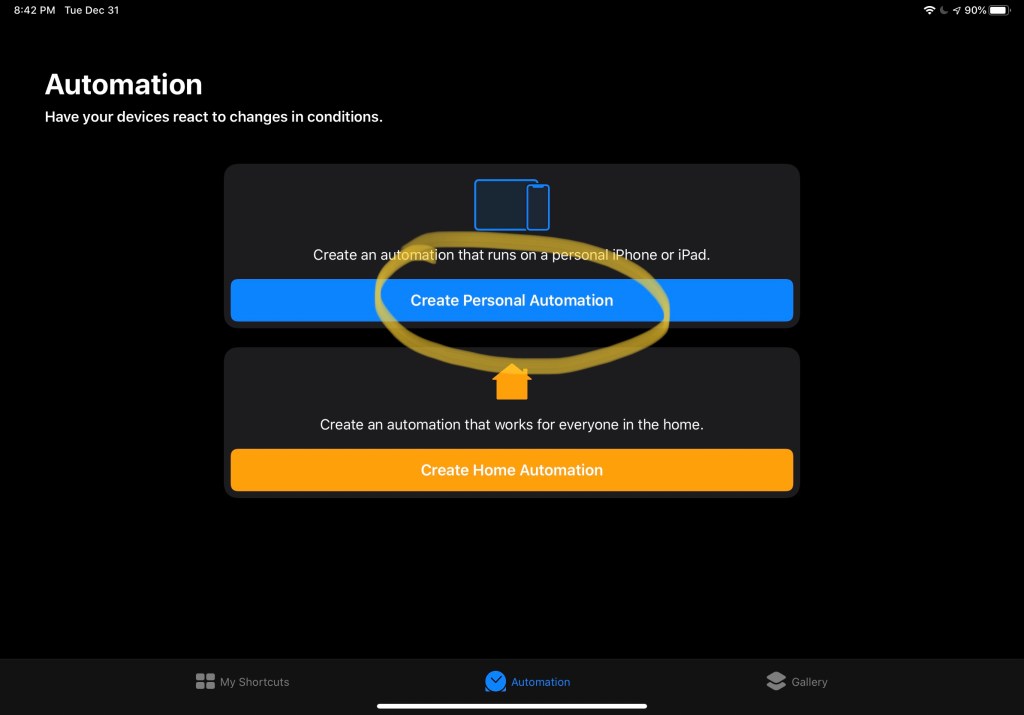
1) Open up Shortcuts and click on “Automation” on the bottom center of the screen. Click on “Create Personal Automation.”
2) In the “New Automation” screen, choose “Open App” and choose Kindle (or your reader), this automation will trigger when you open the app.

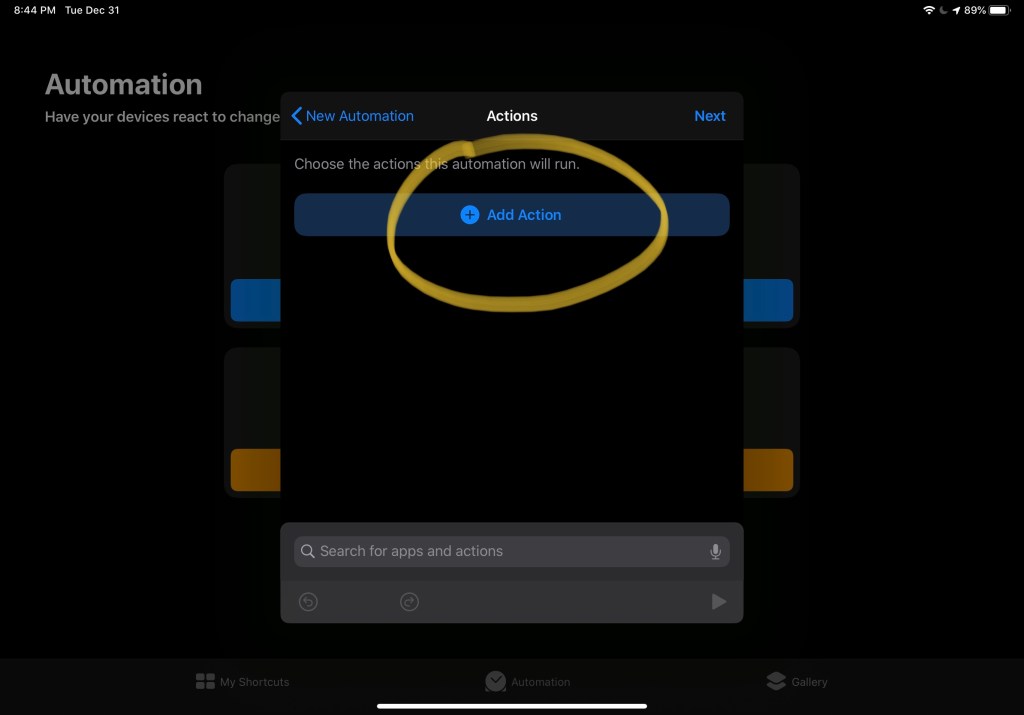
3) Choose “Add Action” so we can tell Shortcuts what we want done.
4) In the search bar, type “Do Not Disturb”, and you’ll see it listed towards the bottom. Click the “Do Not Disturb” in the results. 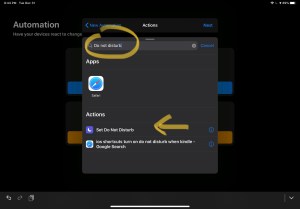
5) At the bottom of the following screen, turn OFF the “Ask before running” so that you don’t have to acknowledge to Shortcuts that you actually want this done every time you bring up Kindle. 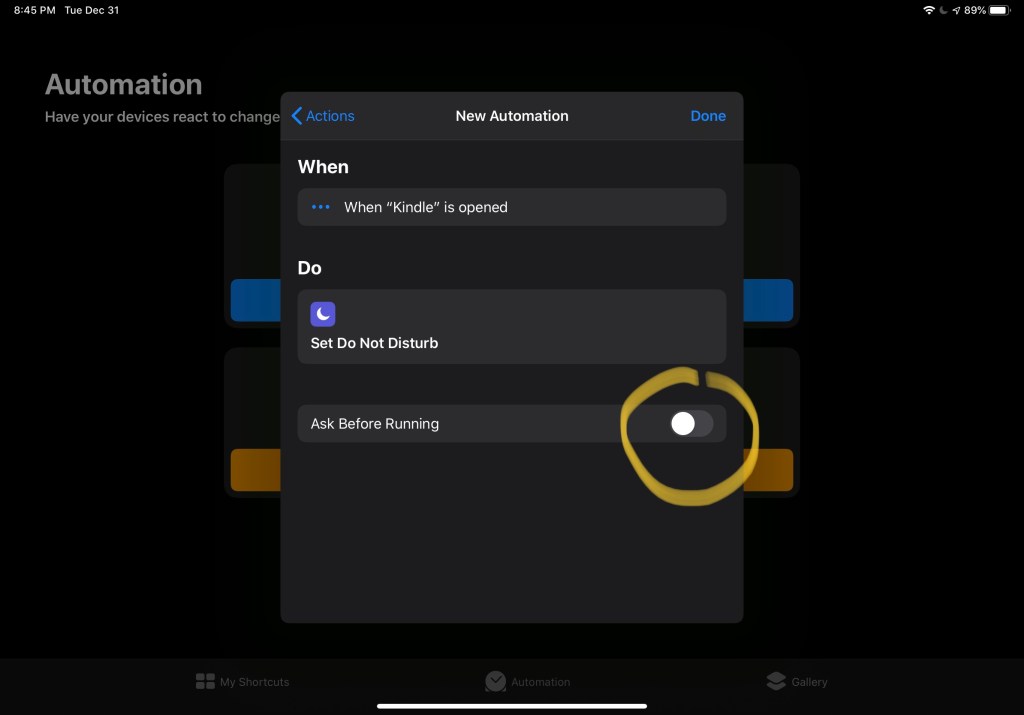
6) Click “Done” and that’s it! Make sure DND is OFF, launch Kindle, and you’ll get a pull-down notification saying your automation has run. Check DND, it should be on!
Note- If you want to disable DND….that’s on you. 😉 Pull down from the top right of the screen and tap the moon.


This is such a great tip! Actually, you don’t have to manually turn off, do not disturb; you can create another shortcut, where if the Kindle app is closed, do not disturb automatically turns off, it’s brilliant! Thank you for showing us how to do this 🙂
LikeLiked by 1 person