AWS Backup Service – should you jump in?

I’ve heard before that if you see a title ending in a question mark, the answer is most likely going to be “no”.

Unfortunately, I’m not going to breaking any traditions here.

Background: AWS announced today that they have added support for EC2 backups now in their backup service.  The AWS backup service now has backup options for Amazon EBS volumes, Amazon Relational Database Service (RDS) databases, Amazon DynamoDB tables, Amazon Elastic File System(EFS), Amazon EC2 instances and AWS Storage Gateway volumes.

But if you’re expecting this to be like the backup/recovery solutions you’ve run on-prem, you’re in for a rude awakening.  It’s not. This has the scent of a minimally-viable product, which I’m sure they’ll build on and make compelling one day, but that day isn’t today.

It’s VERY important that you read the fine print on how the backups occur on the different services covered, and more importantly how you restore, and at what granularity you’re restoring.

First- from a fundamental architectural perspective- backups are called “recovery points”.  That’s an important distinction. We’ve seen the recovery point term co-habitate with “snapshot”. In fact, EBS “backups” are just that- snapshots.

So for EC2 and EBS-related backups (oops, “Recovery Points”), you’re simply restoring a snapshot into a NEW resource. Want to restore a single file or directory in an EC2 instance or in a filesystem on your EBS volume? Nope. All or nothing. Or, you’ll restore from the RP into a new resource, and copy the needed data back into your live instance. I’m sorry, that’s just not up to today’s expectations in backup and recovery.

What about EFS? Well, glad you asked. This is NOT a snapshot. There is ZERO CONSISTENCY in the “recovery point” for EFS, as the backup in this case doesn’t snapshot- it iterates through the files, and if you change a file DURING a backup, there is a 100% chance that your “recovery point” won’t be a “point” at all- so you could break dependencies in your data. Yet they still call the copy of this data a “restore point”. Give them props for doing incremental forever here, but most file backup solutions (when paired with enterprise NAS systems or even just Windows) know how to stun the filesystem and stream their backups from the stunned version, rather than the volatile “live” filesystem.  Also, if you want to do a partial recovery, you cannot do it in-place- it goes to a new directory located at the root of your EFS.

The BIGGEST piece missing from the AWS Backup Service is something we’ve learned to take for granted from B/R solutions: CATALOG.  You need to know what you want to restore AND where to find it in order to recover it. With EFS, this can get REALLY dicey. It’s really easy to choose the wrong data, perhaps it’s a good thing they don’t allow you to restore in place yet!

Look, I applaud AWS for paying some attention to data protection here. This does shine a light on the fact that AWS data storage architecture lends itself to many data silos that require a SPOG to manage effectively and compliantly. However, there is a (very short) list of OEM B/R and data management vendors that can do this effectively not just within AWS but across clouds, and still give you the content-aware granularity you need to execute your complex data retention and compliance strategies and keep you out of trouble.

So many organizations are rushing to the cloud, make sure that you’re paying adequate attention to your data protection and compliance as you go, you’ll find that while the cloud providers are absolutely amazing at providing a platform for application innovation and transformation, data governance, archive, and protection are not necessarily getting the same level of attention from them- it’s up to YOU to protect that data and your business.


Short thoughts on Project Nautilus (VMWare Fusion tech preview)

I’m going to be installing this puppy tonight I think. After reading the VMware blog on it here I do have concerns/questions about some of the things it brings to the table.

First, containers are going to be running in their own “PodVM” or pod, which is going to create all sorts of confusion when they bring Kubernetes to the table (as the article says they are going to do), as in K8s “pods” refer to one or a group of containers that are instantiated together and run as an application on a single host.  So in that case, a pod would be a group of containers that run in their own…pods.  I strongly suggest that the really smart folks at VMware find a different name for this construct, even though all the cool ones may already be taken. (“LiteVM”, maybe? “MiniVM”? or just “space”?)

Second- they’ve done something interesting with networking here. In Docker, if you want your container to talk to the network, you need to portmap the container to the localhost, hostport:containerport. This needs to be explicitly stated when you start your container.

With Nautilus, when you start your container, it gets automatically added to a VMnet- so out of the box you’ll get an IP on the NAT’d network so your local machine can get to the container- WITHOUT any explicit exposure/mapping of ports- everything looks like it’s open on that IP address that’s no longer the localhost.  If you add it to a bridged network, the LAN will give the container an IP via DHCP, and any listening ports will be available.   (If I’m wrong here, I’ll correct this ASAP).

Now, one of the things I REALLY like about apps being deployed on K8s is that you’re FORCED to explicitly state what ports the container will allowed to communicate on. This dramatically reduces attack surface and forces the developers and engineers to be much more aware of how their apps are using network resources. I’m sure (hoping) there will be other ways of locking down the containers that get IP’s from the VMnets, but as it looks like they won’t by default, I’m fearful that the quick and dirty way will lead to less security.

I’m looking forward to playing with this, in particular seeing how it works with things like PVCs, and other pipeline, testing, and integration toolsets.  I know it’s just the desktop version and it’s VERY new, but I have a hunch that at least some of the lessons learned are going to end up in Pacific.

[Off-Topic] Automatically set your iPad to “Do Not Disturb” when you open your Kindle (or other reader) app

One of the things I dislike about reading on my iPad is that there are so many distractions that can break your concentration, like iMessages, Facebook Messenger, Twitter notifications, etc. Now sure…you can swipe down and just tap the crescent moon and turn on Do Not Disturb.

But I forget to do that. Every time. Why can’t it just turn on DND automatically when it knows I’m reading??

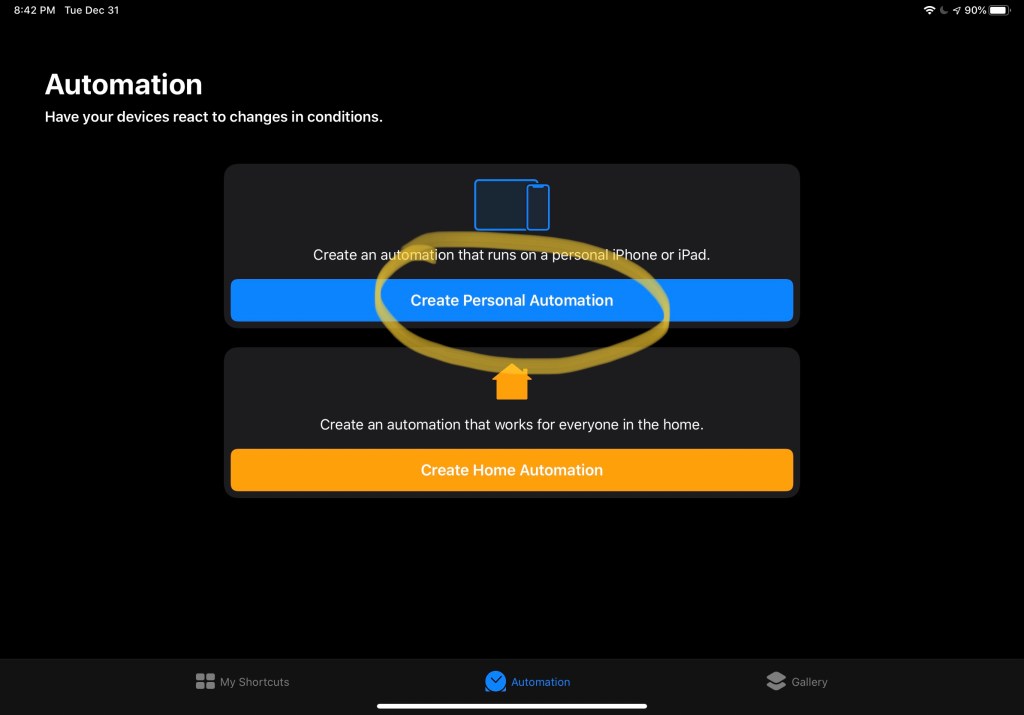
Well…it can. And, it’s REALLY EASY. Here’s a step-by-step showing you how to do this using the Shortcuts app. I’ve written these instructions for beginners so if you know what you’re doing, you’ll fly through this quickly, I apologize for the very specific instructions.

1) Open up Shortcuts and click on “Automation” on the bottom center of the screen. Click on “Create Personal Automation.”

2) In the “New Automation” screen, choose “Open App” and choose Kindle (or your reader), this automation will trigger when you open the app.

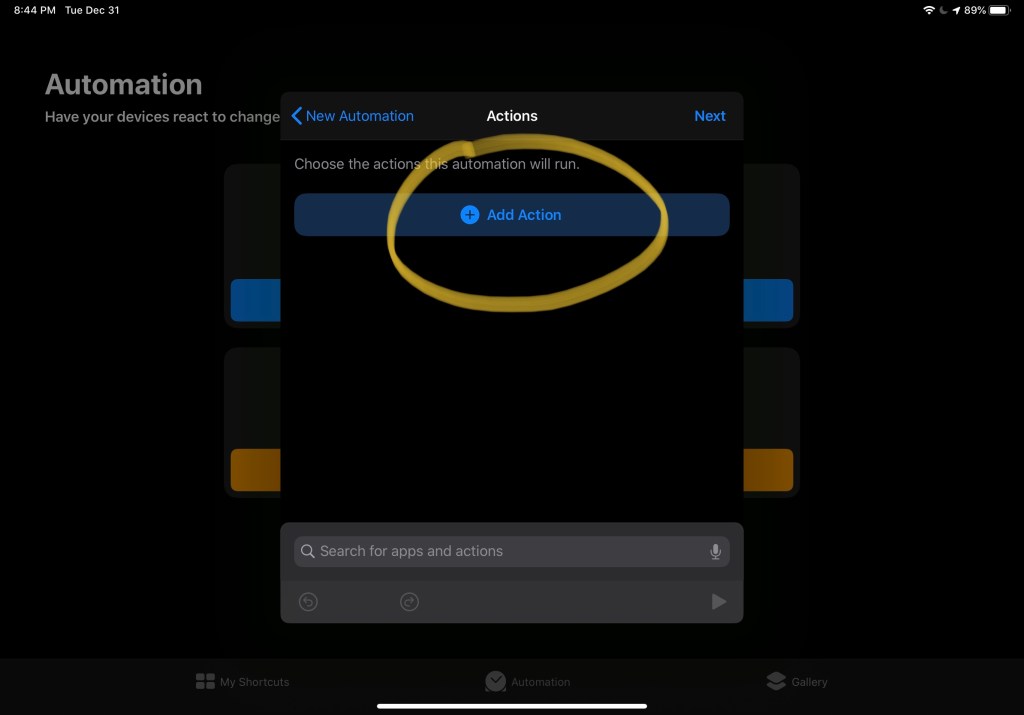
3) Choose “Add Action” so we can tell Shortcuts what we want done.

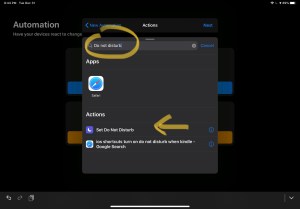
4) In the search bar, type “Do Not Disturb”, and you’ll see it listed towards the bottom. Click the “Do Not Disturb” in the results.

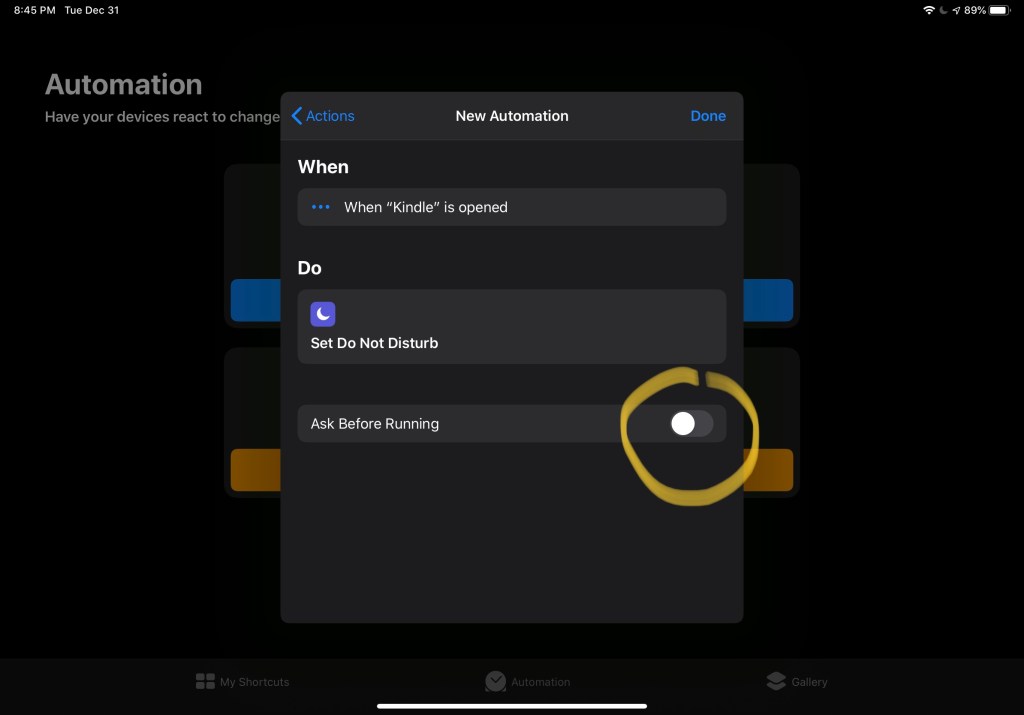
5) At the bottom of the following screen, turn OFF the “Ask before running” so that you don’t have to acknowledge to Shortcuts that you actually want this done every time you bring up Kindle.

6) Click “Done” and that’s it! Make sure DND is OFF, launch Kindle, and you’ll get a pull-down notification saying your automation has run. Check DND, it should be on!

Note- If you want to disable DND….that’s on you. 😉 Pull down from the top right of the screen and tap the moon.